How to Set Up a New Case Alert on eCourtsIndia (Step by Step)
A step-by-step guide to creating a New Case Alert on eCourtsIndia: type a party name, choose courts and filters, read the preview, and get a daily digest of newly registered cases that name them.
Quick answer
To set up a new case alert on eCourtsIndia, log in, keep at least ₹20 in your wallet, open New Case Alerts in the dashboard sidebar and click New alert. Type the company or person's name, choose the courts, check the free preview and click Create alert. After that, each day you get a digest of newly registered cases that name them, by email and on any other alert channels you have turned on.
Case alerts tell you when a case you already follow moves. New Case Alerts, launched on 19 November 2026, answer a different question: has a new case been registered that names my company, my client or me? This guide walks through every screen of the setup and ends with a fix for each message the form can show. For the story behind the feature, read the New Case Alerts launch post.
On this page (8 sections)
- Watch: How to set up a New Case Alert
- What is a new case alert?
- What do you need before you start?
- How do you set up a new case alert, step by step?
- What does the daily digest look like?
- How do you see the cases caught and track one?
- Troubleshooting: what do the form’s messages mean?
- Frequently asked questions
Watch: How to set up a New Case Alert
Read the video transcript
Here is how to set up a new case alert on eCourtsIndia, and get the newly registered cases that name a company or person. Enter your email and password, then sign in. Keep at least rupees 20 in your wallet. Open New Case Alerts from the sidebar, and click New alert. Type the party name. The form shows the core words it will look for. Tick the courts, and pick a state if you like. Read the free preview to judge the volume. Then click Create alert. Rupees 20 is charged for the first month. Each day, from about 7 in the morning, the digest arrives by email, and on WhatsApp if you turn it on in Settings. Open cases caught to see each new case. Click one, and track it by its CNR. To recap: keep rupees 20 in your wallet, name the party, choose the courts, check the preview, and create the alert. Set up your first alert at eCourtsIndia.com.
What is a new case alert?
A new case alert watches a name, not a case. Each day it sends you the newly registered cases that name the company or person you chose, on either side.
The dashboard puts it in one line: “Name a company or person. Each day we send you the newly registered cases that name them, by email and on any other alert channels you have turned on.” A new case here means a case newly seen by eCourtsIndia’s data harvesters whose registration date falls within the last 60 days. It is not a search of old cases.
This is different from case alerts on a case you already track. Tracking follows a known case, by its CNR, for hearings, orders and status changes. A new case alert finds the case you did not know about. The two work together: the alert finds the new case, then you track it. For ideas on whose names to watch, see who uses new case alerts and why.
What do you need before you start?
You need an eCourtsIndia account, at least ₹20 in your wallet, and the name you want to watch.
- An account. New Case Alerts live inside the dashboard, so you must be logged in. If you do not have an account yet, our guide on how to sign up for eCourtsIndia takes about two minutes, including the email and phone OTP steps.
- ₹20 in your wallet. The first month is charged when you create the alert. 1 credit = ₹1, and credits you pay for never expire.
- The name. A company name such as “Asha Textiles Pvt Ltd” (an example) or a person’s full name. The more distinctive the name, the cleaner your results. Our party name tips for new case alerts go deeper.
How do you set up a new case alert, step by step?
Log in, check your balance, open New Case Alerts, click New alert, type the name, pick courts, read the preview and click Create alert. Here is each step in full.
Step 1: Log in or sign up
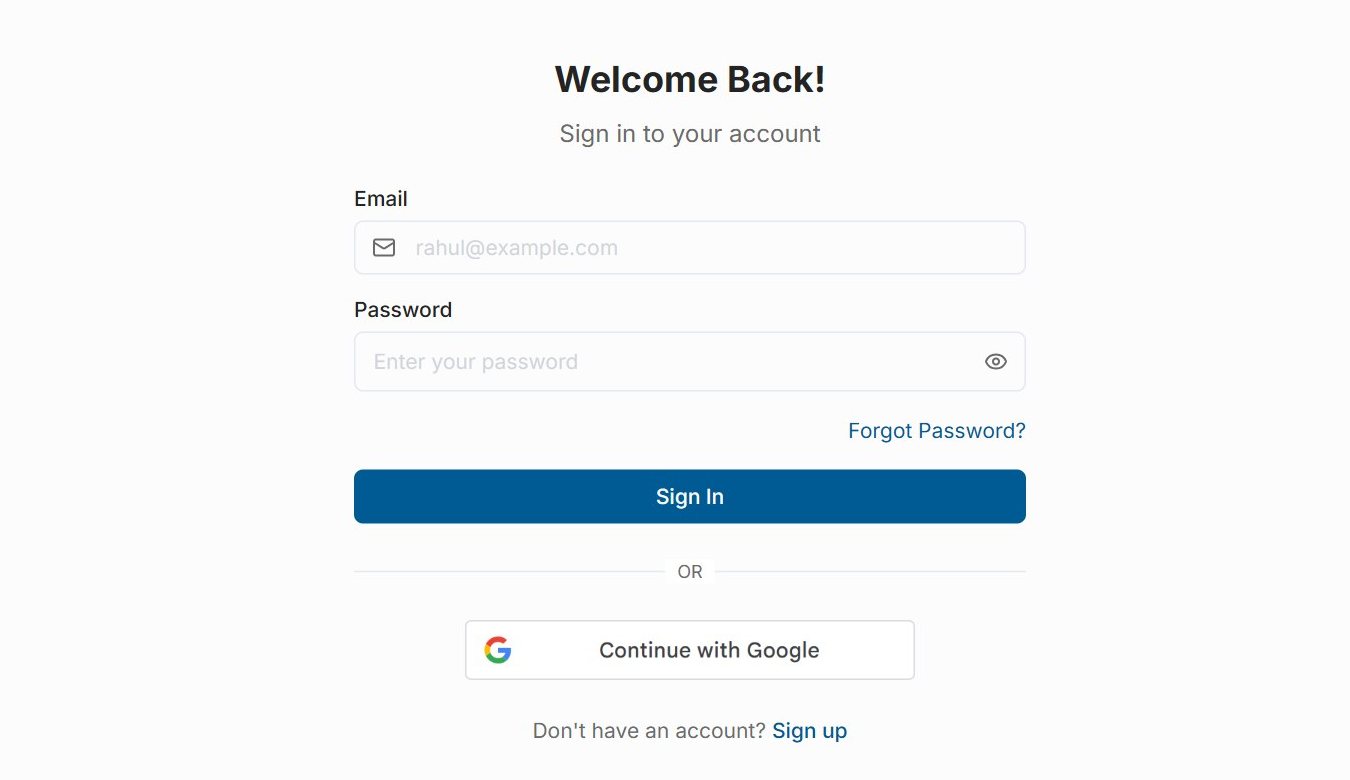
Go to ecourtsindia.com/auth/login. Enter your Email and Password and click Sign In, or continue with Google if that is how you signed up. New here? Click Sign up at the bottom of the page and follow the steps.
Step 2: Make sure your wallet has at least ₹20
Open Wallet in the sidebar and check the balance. If it is under ₹20, click Add Credits. That takes you to the pricing page, where you can take a plan or, under Buy credits without a plan, pick a pack starting at 50 credits (₹50 + 18% GST, ₹59 in all). Pay by UPI, card or netbanking. Our wallet, credits and plans guide explains every option.
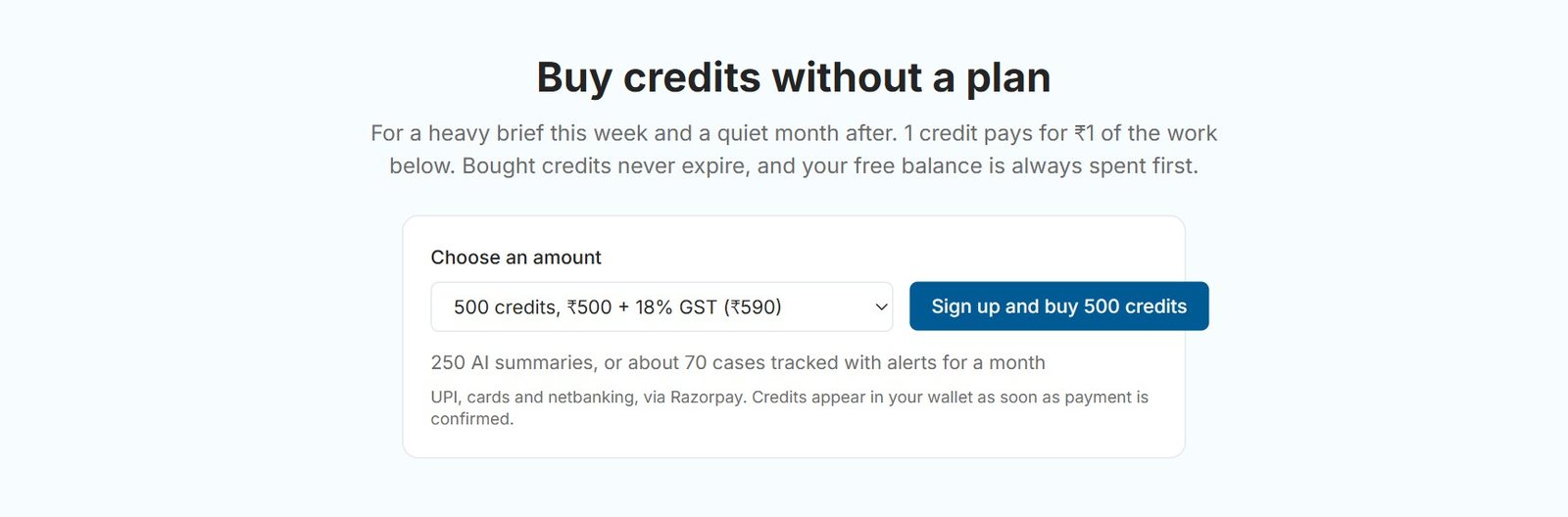
If you skip this, the form tells you when your balance is short and offers an Add credits button that brings you back afterwards.
Step 3: Open New Case Alerts from the sidebar
In the dashboard sidebar, below Notifications, click New Case Alerts, the item with a bell and a plus sign. You can also go straight to ecourtsindia.com/dashboard/new-case-alerts. If you have no alerts yet, it reads “No alerts yet. Set up your first one below.” and the form is ready below.
Step 4: Click New alert
If you already have alerts, click New alert (the button with a plus sign) to open the form. Each alert watches one name with one set of filters.
Step 5: Type the party name and check the “We’ll look for” line
In Party name, type the company or person. The placeholder reads “e.g. XYZ Company Pvt Ltd or Ramesh Kumar” and the help text says: “A company or person. We match new cases that name them on either side.” Keep it under 200 characters.
Once the preview answers, the help line changes to We’ll look for: followed by the core words the alert will match. eCourtsIndia drops punctuation and noise words such as M/S, THE, PVT, PRIVATE, LTD, LIMITED, LLP, CO and COMPANY, and ignores relation markers like S/O and W/O. So typing “M/s Asha Textiles Pvt Ltd” shows We’ll look for: “ASHA TEXTILES”. A case matches when all of those words appear in one party name, in any order, on the petitioner or respondent side.
Step 6: Choose the courts
Under Courts, four boxes are ticked by default: Supreme Court (all India), Tribunals (all India), High Courts and District Courts. Untick any you do not need. At least one must stay ticked.
Step 7: Optionally pick a State and District
When High Courts or District Courts is ticked, a State dropdown appears, set to “Any state”. With High Courts ticked, the note under it reads “High Courts: includes the High Court that serves this state.”, so choosing Haryana also covers the Punjab and Haryana High Court. Once you choose a state with District Courts ticked, a District dropdown appears, set to “Any district”, with the note “District Courts only.”
One alert takes one state and at most one district. These filters never narrow the Supreme Court or tribunals, which always stay all India.
Step 8: Read the preview
While you fill the form, a free preview counts recent matches. It shows “Counting recent cases…”, then something like “~84 cases in the last 60 days (1.4 a day). Approx.” and a Recent examples list of up to five matches shown as “Petitioner vs Respondent” with the registration date. The preview shows who and when only: there is no CNR or link, and these examples are not sent to you.
If the name matches more than five cases a day, or is a single word of three letters or fewer, an amber box warns you and suggests adding more of the name or a filter. You can still go ahead: the button then reads Create anyway · ₹20/month. Previews are free and do not use your free searches.
Step 9: Click Create alert
Check the cost line, for example “Cost: ₹20/month · Balance ₹212”, then click Create alert. A toast confirms “Alert created” and “₹20 charged”. Pressing Enter in the name box does not create the alert; only a click on the button charges you. The small print explains that the alert renews every month while it is on, and that pausing or deleting does not refund the rest of a month. See how to pause, resume or delete a new case alert.
Step 10: Turn on WhatsApp notifications if you want them
Email is always on for new case alerts. To also get them on WhatsApp, open your user menu, click Settings and, under Notification Preferences, switch on WhatsApp notifications. This is the same switch that controls WhatsApp for your tracked cases (see the dashboard guide). If you have the eCourtsIndia app on your phone with notifications allowed, you also get an app notification.
What does the daily digest look like?
Each alert sends one digest a day, from about 7 AM IST, covering the new matches since the last one. It goes to your email, to WhatsApp and the app if those are on, and to your dashboard inbox.
- Email: always sent. It lists up to 50 new cases; if there are more, the rest are counted.
- WhatsApp: a short message in this shape (example): “New case alert: 2 new case(s) were registered naming Asha Textiles Pvt Ltd. Latest: Asha Textiles Private Limited, District Court, Central (Delhi), registered 17 Nov 2026. See all of them in New Case Alerts on eCourtsIndia.” A button opens the New Case Alerts page.
- App: a notification on your phone if the eCourtsIndia app is installed and notifications are allowed.
- Inbox: every digest is also listed under Notifications in your dashboard.
The digests are included in the ₹20 a month. Unlike alerts on tracked cases, there is no per-message charge.
How do you see the cases caught and track one?
Click the “cases caught” link on your alert to see every match, newest first, then open a case and track it by its CNR.
On the New Case Alerts page, each alert row shows the party name, a status badge such as Active, a filter summary such as “All courts”, the date it is “Paid through” and a link like “2 cases caught”. Click that link, or the party name, to open the cases page. It lists each case with the party name as the court recorded it, the side and court (for example “Petitioner · District Court, Central (Delhi)”), the CNR (for example DLCT010012342026, a made-up number) and “Registered 17 Nov 2026”. Until the first match arrives, it reads “No new cases yet.”
Click a party name to open the full case page. If it is a case you need to follow, click Enable alerts on the case page to track it. At the time of writing that is ₹5 per case per 30 days, and you then get hearings, orders and status changes as they happen. The case alerts guide walks through that flow.
Troubleshooting: what do the form’s messages mean?
Each message on the New Case Alerts form points to one fix. Here they are, word for word.
| Message | What it means | What to do |
|---|---|---|
| Keep the name under 200 characters | The party name is too long. | Type only the name itself, without addresses or descriptions. |
| Add the company or person name, not just Pvt Ltd | Everything you typed is a noise word. | Add the distinctive part, for example “Asha Textiles”. |
| Tick at least one kind of court | All four court boxes are unticked. | Tick at least one. |
| You already have an alert for this name with these filters | The core words and filters match an existing alert. “M/s Asha Textiles Pvt Ltd” and “asha textiles” count as the same name. | Use the existing alert, or change the courts, state or district. |
| Your balance is ₹x short of one month. | The wallet holds less than ₹20. | Click Add credits. You return to the alerts page after paying. |
| Checking again in a moment | You previewed about 10 times in a minute. | Wait a few seconds; the preview retries. |
| Preview limit reached for today. You can still create the alert. | You used 100 previews today. | Create the alert without a preview, or come back tomorrow. |
| Amber box: “That’s x a day. Add more of the name or a filter to narrow it.” | The name is broad: over five cases a day, or one word of three letters or fewer. | Add a surname, middle name or more of the company name, or pick a state or district. |
- No digest has arrived yet. The alert starts from the moment you create it and does not send older cases, so the first digest comes only after a new matching case is seen.
- Nothing on WhatsApp. Check that WhatsApp notifications is on in Settings and that your registered phone number is correct. Email is sent either way.
- A case you expected is missing. Matching uses the names as the court recorded them, so a spelling the court used will not match unless all your core words appear. Create a second alert for a known variant, such as a former name.
- The badge says “Paused: low balance”. The wallet could not pay the monthly renewal. Add credits and the alert resumes on its own.
Setting up takes a couple of minutes, and after that the watching happens each day without you. Open ecourtsindia.com/dashboard/new-case-alerts, type the one name you most need to watch, and read the preview before you create it. For a map of everything else in your account, start with the eCourtsIndia user guide.
Sources: eCourtsIndia pricing page (new case alert price, case tracking and alert prices, credit packs, November 2026); the New Case Alerts page in the eCourtsIndia dashboard (labels and messages as shown on 19 November 2026).
Frequently asked questions
What is a new case alert on eCourtsIndia?
A new case alert watches a company or person's name and, each day, sends you the newly registered cases that name them on either side. It covers the Supreme Court, tribunals, High Courts and District Courts, with optional state and district filters. You set it up under New Case Alerts in the eCourtsIndia dashboard.
How much does a new case alert cost?
At the time of writing (November 2026), each new case alert costs ₹20 (20 credits) a month from your eCourtsIndia wallet. The first month is charged when you create it, then it renews monthly while the alert is on. The preview and the daily digests are included, with no per-message charge.
Does a new case alert send cases filed before I set it up?
No. A new case alert starts from the moment you create it and does not send older cases. The preview on the form shows matches from the last 60 days so you can judge how many cases to expect, but those examples are not delivered. To look up past cases by name, use eCourtsIndia search instead.
When do new case alert digests arrive?
Each alert sends one digest a day, from about 7 AM IST, covering the new matching cases since the previous digest. An email lists up to 50 cases and counts any beyond that. Digests also appear under Notifications in your eCourtsIndia dashboard.
Can I get new case alerts on WhatsApp?
Yes. New case alerts always go by email, and also on WhatsApp if WhatsApp notifications is switched on under Notification Preferences in your eCourtsIndia Settings. The WhatsApp message gives the number of new cases, the latest one with its court and registration date, and a button to open New Case Alerts. The eCourtsIndia app also shows a notification if it is installed and allowed.
How is a new case alert different from tracking a case?
Tracking follows a case you already know, by its CNR, and tells you about hearings, orders and status changes for ₹5 per case per 30 days at the time of writing. A new case alert watches a name and tells you when a new case naming that party is registered. Use the alert to find the new case, then track it.
Will a new case alert catch every case that names me?
No tool can promise that. A new case alert reports newly registered cases that eCourtsIndia's data harvesters see, matched on names as the court recorded them. Spelling variants will not match unless all your core words appear, so create a second alert for a known variant such as a former name.
Update log: November 2026. eCourtsIndia (ecourtsindia.com) is an independent, non-government platform that mirrors public court records; it is not affiliated with any court or with the government.
Related guides
GuideHow-To Guides
How to Pause, Resume or Delete a New Case Alert (and How Billing Works)
How to manage your New Case Alerts on eCourtsIndia: read the alerts list, pause, resume or delete an alert, and understand the ₹20 monthly billing, low-balance pauses and wallet entries.
GuideHow-To Guides
How to Pick the Right Name for a New Case Alert (and Read the Preview)
A new case alert is only as good as its name. Here is how core words are matched, how to read the free preview and the too-broad warning, and how to narrow an alert with courts, state and district.
UpdateAI & Legal Technology
AI Clerk Update: What Lawyers Can Now Do in One Chat (November 2026)
AI Clerk on eCourtsIndia got its biggest update yet: find a case in a few taps, start tracking from the chat, prepare for hearings, read orders and ask law questions, all in one conversation. Here is what changed, with sample chats and use cases.