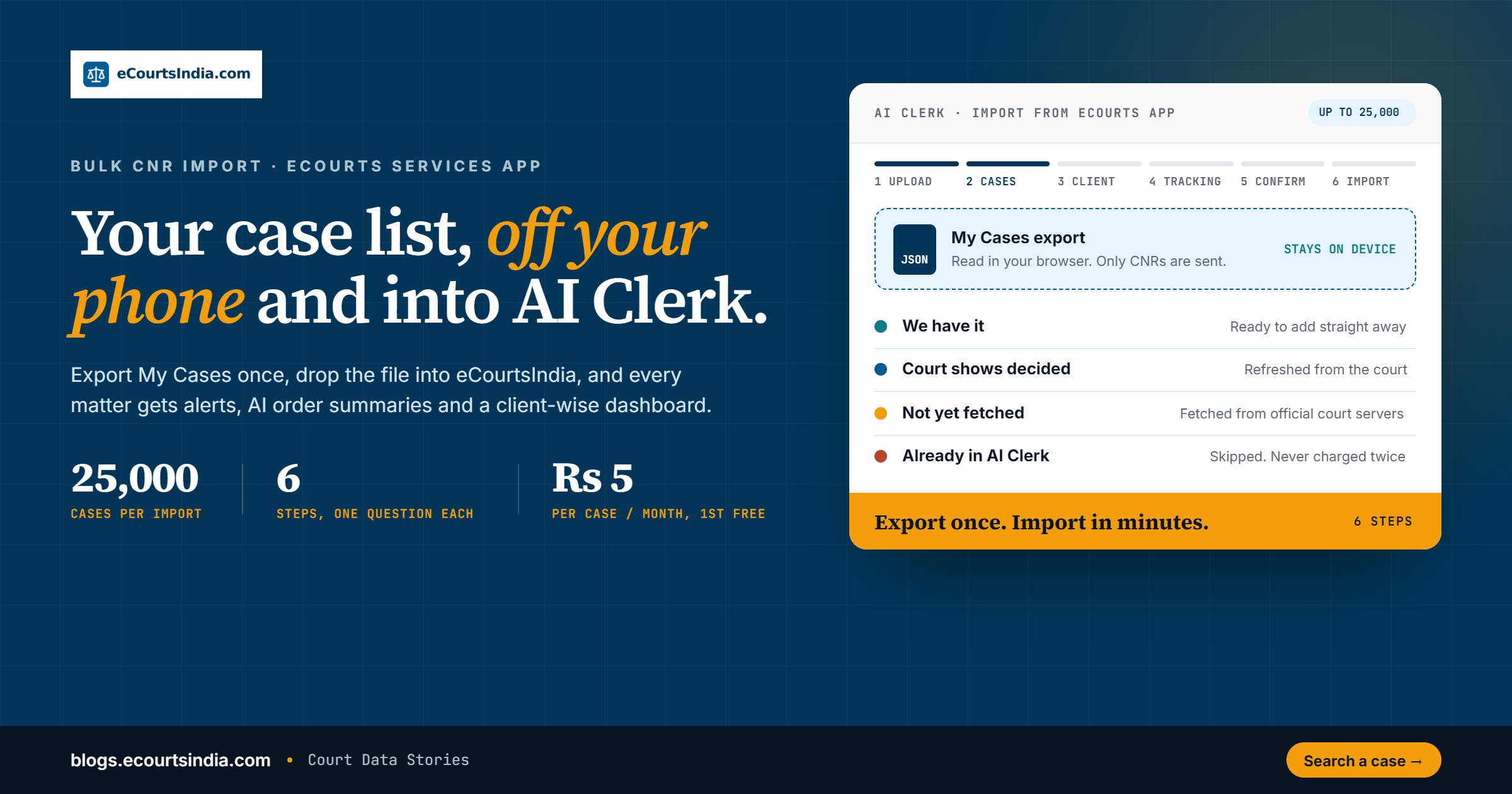
To import your cases from the government’s eCourts Services app into eCourtsIndia, open My Cases in the eCourts Services app and choose Export, then sign in to eCourtsIndia, go to AI Clerk and click Import from eCourts app. Upload the exported file (or paste your CNR numbers), pick which cases to bring in, put them under a client, decide which ones to track, and confirm. Up to 25,000 cases go in at once. The file never leaves your device; only the CNR numbers are sent. Every imported case then gets WhatsApp and email alerts, AI order summaries and a place in your client-wise AI Clerk dashboard.
Last updated: 7 October 2026

Most advocates we speak to have the same habit. Over the years they have saved every matter into the My Cases list of the official eCourts Services app. Fifty cases, two hundred, sometimes a thousand. It works, but the list lives on one phone, it does not tell you when something changes, and it cannot read an order for you. Until now, moving that list anywhere else meant typing CNR numbers one by one.
That is the gap this feature closes. You export the list from the government app once, drop the file into eCourtsIndia, and your whole practice moves across in a few minutes. This guide walks through every screen, explains what each option costs, and covers the questions lawyers have been asking us since it went live.
Key takeaways
- The import lives in your dashboard under AI Clerk > Import from eCourts app, or directly at ecourtsindia.com/dashboard/clients/import.
- Upload the My Cases export from the eCourts Services app (a .txt or .json file), or paste CNR numbers if you keep your list somewhere else. Up to 25,000 cases per import.
- The file is read in your browser. Only the CNR numbers reach eCourtsIndia.
- Before anything is charged, you see which cases we already hold, which need a refresh, which we will fetch fresh from the court, and which are already in AI Clerk (those are skipped).
- Put everything under one client, create a new client on the spot, or assign client by client. Use Leave some cases out to drop matters you no longer handle.
- Tracking is Rs 5 per case per month with the first month free. Disposed cases are not tracked. Order reading and summaries are a small one-time charge per order, shown before you confirm.
What the eCourts Services app is, and why lawyers are moving their list out of it
The eCourts Services app is the official mobile app of the eCourts project, used to look up case status, cause lists and orders from district courts and High Courts, and to save matters into a personal My Cases list. It is free, it is official, and almost every practising advocate in India has it. If you want the background on the system it sits on, our explainer on what the eCourts system is covers it in plain words.
The My Cases list is useful, but it was built as a bookmark list, not as a practice tool. In daily practice that shows up in a few ways:
- Nothing is pushed to you. You open the app and check. If a date moves or an order is uploaded and you do not look, you do not know.
- It is tied to one device. Your juniors, your clerk and your laptop do not see the same list.
- There is no client view. Two hundred cases sit in one flat list, with no way to group them by the client they belong to.
- Orders stay as PDFs. You still have to open and read each one to know what happened.
eCourtsIndia already solves each of these for a single case. You can enable case alerts on any matter and have the AI Clerk read every order. What was missing was a way to bring hundreds of matters across without retyping them. The import is that bridge.
Before you start: what you need
- A free eCourtsIndia account. Sign up at ecourtsindia.com/auth/register if you do not have one.
- Your case list. Either the My Cases export from the eCourts Services app, or a list of CNR numbers copied from a spreadsheet, a diary or an email. Each CNR is the 16-character code printed on the case; if you are not sure what that is, read CNR Number Decoded.
- Some wallet balance if you want orders summarised and cases tracked. The import shows you the exact estimate first and tells you how much to top up if you are short, so you never pay for something you did not see.
Step 0: Export My Cases from the eCourts Services app
Open the eCourts Services app on your phone, go to My Cases and choose Export. The app writes your saved cases into a single file. Keep it as it is; do not open and edit it, because eCourtsIndia reads the file in the exact format the government app produces.
If you will run the import from your phone’s browser, the file is already where you need it. If you prefer a laptop, send the file to yourself by email, WhatsApp or cloud drive first. The import screen works on both, and it was built to fit small phone screens as well as desktops.

Step 1: Open AI Clerk and click Import from eCourts app
Sign in and open AI Clerk from the left menu of your dashboard. At the top right, next to Add Client, you will see a button that reads Import from eCourts app. Click it. A six-step wizard opens: Upload, Cases, Client, Tracking, Confirm and Import.

Step 2: Upload the export file, or paste CNR numbers
The first screen is titled Add your eCourts app export and has two tabs.
- Upload file. Click Choose the exported file and pick the file from your device. It takes the .txt or .json file the eCourts Services app produces, with up to 25,000 cases in one go.
- Paste CNR numbers. If your list is in Excel, a case diary or an old email, copy the CNR column and paste it into the box. You can separate CNRs with new lines, spaces, commas or semicolons. Lower case is fine; it is converted for you.

Two things happen quietly at this stage. First, the file is read inside your browser, so party details and everything else in the export stay on your device and only the CNR numbers are sent to us. Second, the list is cleaned up: duplicate CNRs are counted once, and anything that is not a valid 16-character CNR is set aside and reported instead of breaking the import.
Step 3: See what we already have, and choose which cases to import
The Cases screen checks every CNR against the eCourtsIndia index and sorts your list into four groups before you spend anything. It reads, for example, “10 cases read from your file. Here is what we already have.”

Here is what each count means:

| What the card says | What it means | What we do |
|---|---|---|
| We have it | The case is already in the eCourtsIndia index, which covers 32 crore+ court records | Ready to add straight away |
| Court shows decided | The court has newer information than our copy, typically a disposal we have not caught yet | We refresh it from the court |
| Not yet fetched | The CNR is not in our index yet | We fetch it from the official court servers; it can take a while to appear |
| Already in AI Clerk | You already track this CNR under one of your clients | Skipped, so nothing is duplicated or charged twice |
Below the cards you choose between two options. Import all brings in every eligible case and has AI Clerk read and summarise all of their court orders, so it can answer questions about them later. The screen shows an “about Rs X” estimate, charged as each order is processed rather than in one lump.
Leave some cases out
Your export probably has matters you no longer handle: a bail application from three years ago, a case a colleague took over, a file you saved only to watch. Pick Leave some cases out and a table opens with every case, its parties, its status and the cost to process it. Filter by CNR, party or court, use Select all or Select none, sort by cost, and untick what you do not want. Unticked cases are simply not imported; the rest go through as normal.

A practical tip: sort by cost to process. Old, heavily litigated matters can have dozens of orders. If you only need them for the record, leave them out now and add them one at a time later when they come back to life.
Step 4: Put the cases under a client
AI Clerk organises everything by client, so the wizard asks where these cases belong. You have two choices.
- Put them all under one client. This is the default and the fastest route. Pick an existing client, or create a New client right there by typing a name. You can always move cases later. If you just want everything in one place first, keep the suggested “eCourts app import” client and sort it out afterwards.
- Choose a client for each case. Pick a client per case from a dropdown. To save time, there is also a single “give every case without a client” control that fills in all the blanks at once.
If you are a litigant tracking only your own matters, one client in your own name is all you need.
Step 5: Decide which cases AI Clerk should track
Tracking means AI Clerk checks the court every day, alerts you on WhatsApp and email about new hearings and orders, and keeps the case up to date. It costs Rs 5 per case per month, and the first month is free. Disposed cases are not tracked, because nothing more is expected on them.

You get three options:
- Track the open cases (recommended). Every pending case is watched. The screen shows the monthly figure and the date the first charge applies, plus the small per-order and per-alert charges that follow when something new happens.
- Do not track any. The cases are imported and summarised but not watched. You can switch tracking on for any case later.
- Let me choose. Turn tracking on or off case by case.
Each delivered alert costs Rs 0.50. What triggers one, and how to read it, is covered in our case alerts guide. Current plans and credit packs are on the pricing page.
Step 6: Check the summary and import
The Check and import screen lays out exactly what will happen before you click anything: how many cases, which client, how many will be fetched or refreshed from the court, how many will be tracked, and how many orders will be processed. In the example below, 4 cases carried 32 orders between them.

The cost section keeps two things apart so nothing surprises you: the one-time cost of reading and summarising orders, and the monthly cost of tracking. On the right, your wallet balance shows how much will be left after processing. If the balance is short, the screen suggests the nearest credit pack (with GST included) and opens it in a new tab, so you can top up without losing your place. When it all looks right, click Import.
What happens after you click Import
You land on an Import complete screen with five numbers: cases added and under how many clients, cases skipped because they were already in AI Clerk, cases fetching from court, cases refreshing because the court had newer data, and cases tracked, with the monthly figure and the date it starts.

A few things to know from here:
- Orders are processed in the background. You do not need to keep the page open. Charges appear in your wallet as each order finishes.
- New fetches take time. Cases we had to pull fresh from the court can take a while to appear and may show “Data may be stale” until the court data arrives. That is normal; the government servers are not always quick.
- If your balance runs out midway, the remaining orders are not processed. Add credits and use Re-import orders on the case to finish the job. Nothing already done is lost.
- Click Go to your clients to see the cases sitting under each client, ready to open, ask questions about, or share.
eCourts Services app vs eCourtsIndia AI Clerk
The two are not rivals. The government app is the official source, and eCourtsIndia is built on the same public court data. The import simply lets you keep using the app for quick look-ups while your practice runs from a dashboard that does more of the work.
| What you need | eCourts Services app (My Cases) | eCourtsIndia AI Clerk |
|---|---|---|
| Save a list of cases | Yes, on your phone | Yes, in your account, on web and mobile |
| Organise by client | No | Yes, client-wise folders |
| Know when a date or order changes | Open the app and check | WhatsApp and email alerts |
| Read what an order says | Open each PDF | AI summary of every order |
| Move hundreds of cases at once | Export | Import up to 25,000 per run |
| Cost | Free | Free to search; Rs 5 per tracked case per month, first month free |
Who this helps most
Solo advocates in district courts are the biggest winners. Your matters are spread across several court complexes, and the My Cases list is probably the most complete record you have. One export turns it into a dashboard with alerts, which is the kind of tool district court lawyers have long been left without.
Chambers and small firms can collect exports from each associate’s phone, import them under the right clients, and finally see the whole book in one place. Paired with the AI Clerk, you can ask which matters are listed this week or what the last order said without opening a single PDF. Our guide on running a practice across nine courts shows what that looks like day to day.
In-house legal teams that receive CNR lists from outside counsel can use the paste option to load the whole portfolio at once. The litigation portfolio monitoring playbook picks up from there. And litigants with a handful of family or property matters can import them in under a minute and simply wait for the alerts, as our guide to tracking a case in plain English explains.
Troubleshooting
- “This file is not a My Cases export from the eCourts Services app.” The file was edited, renamed into another format, or exported from somewhere else. Export again from My Cases and upload the file untouched. If you only have the CNRs, use the Paste CNR numbers tab instead.
- “No valid CNR numbers found.” A CNR is 16 characters: four letters for the court, two more characters, then a 6-digit case number and 4-digit year. Check for missing characters or extra symbols. CNR Number Decoded breaks down the format.
- Fewer cases than you expected. Duplicates are counted once, invalid CNRs are skipped, cases already in AI Clerk are skipped, and anything past 25,000 is left out of that run. Split very large lists into two imports.
- A case shows “Data may be stale”. It is being fetched from the court. Give it time; the official servers can be slow.
- Orders stopped processing. Your balance ran out. Top up from Wallet and use Re-import orders on the affected case.
- Wrong client. Open the case under AI Clerk and move it to the right client.
Bring your list across today

If your cases are already saved in the eCourts Services app, the hard part is done. Export My Cases, open Import from eCourts app, and let AI Clerk take it from there. For a single matter, you can still search any case and add it on its own, and it is worth bookmarking our Case Status Dictionary for the status words your alerts will use.
Your case list has lived on your phone for years. Give it a dashboard, a daily court check and a clerk who reads every order.
Frequently Asked Questions
How do I import my cases from the eCourts Services app to eCourtsIndia?
In the eCourts Services app, open My Cases and choose Export. Then sign in to eCourtsIndia, open AI Clerk and click Import from eCourts app, or go straight to the import page. Upload the exported file, choose the cases, pick a client, decide on tracking and confirm. Up to 25,000 cases can be imported in one run.
Can I add CNR numbers in bulk without the eCourts app export?
Yes. On the Upload step, switch to the Paste CNR numbers tab and paste your list, separated by new lines, spaces, commas or semicolons. Duplicates and invalid entries are removed automatically. This works well for CNR lists kept in Excel, a case diary or an email. Not sure what a CNR looks like? Read CNR Number Decoded.
Is my eCourts app export file uploaded to eCourtsIndia?
No. The export is read inside your own browser and stays on your device. Only the CNR numbers are sent to eCourtsIndia, which then matches them against its index of 32 crore+ court records and the official court servers. Party details in the file are used only to show you the list on screen.
How much does it cost to import cases in bulk?

Searching and viewing cases on eCourtsIndia is free. When you import, AI Clerk reads and summarises each case’s court orders for a small one-time charge per order, and the wizard shows the estimate for every case before you confirm. Tracking with WhatsApp and email alerts costs Rs 5 per case per month, with the first month free, and each delivered alert costs Rs 0.50. See pricing.
What happens to cases that are already in my AI Clerk?

They are detected on the Cases step, counted under Already in AI Clerk, and skipped. Nothing is duplicated and nothing is charged twice, so you can safely re-import an updated export from the eCourts Services app whenever you add new matters there. Learn more about the AI Clerk.
Can I leave out some cases or assign them to different clients?
Yes. Choose Leave some cases out on the Cases step to untick matters you do not want, with a filter by CNR, party or court and the cost to process each one. On the Client step, put everything under one client, create a new client, or choose a client for each case. Alerts then work per case, as explained in our case alerts guide.