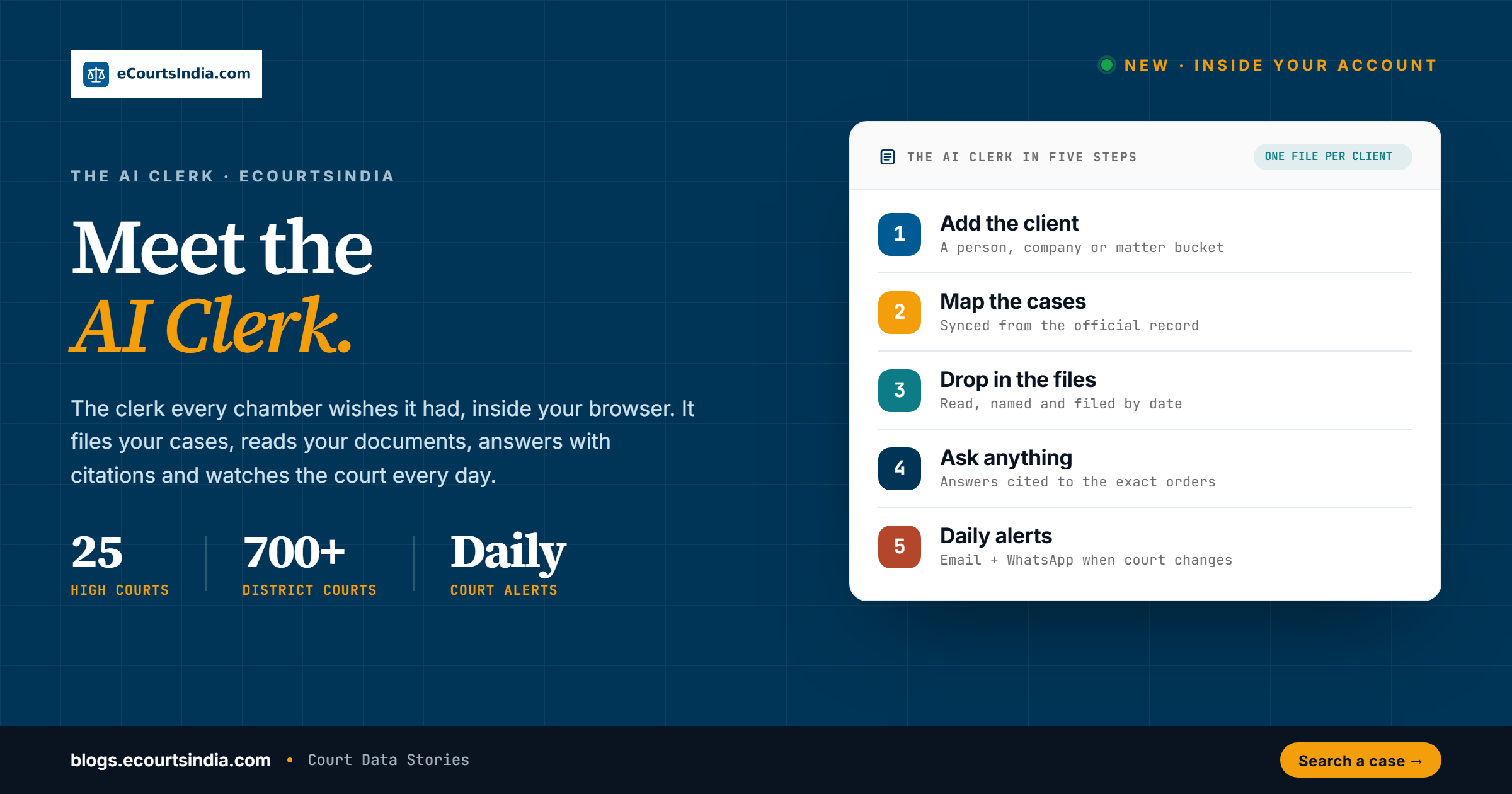

Most lawyers do not lose cases because they are short on skill. They lose hours because the work around the case is scattered. Orders sit in one folder, pleadings in another, a client’s WhatsApp in a third, and the next date of hearing lives only on a portal someone has to remember to check. The new AI Clerk on eCourtsIndia is built to end that scramble. It is a personal legal clerk that organises every matter by client, keeps each case in sync with the official court record, reads and files your documents in the right order, answers questions about the mapped file, and tells you the day anything changes in court. This guide walks the whole thing end to end, with a screenshot for every step, so you can see exactly how it works before you open it.
Key takeaways
- The AI Clerk lives inside your eCourtsIndia account at ecourtsindia.com/dashboard/clients and turns scattered cases and files into one secure, organised file per client.
- You create clients (a person, a company, a bucket of matters, or yourself), then search across Indian courts and map cases to each client. Mapped cases refresh from the official record automatically.
- Drop in every document for a client, evidence, pleadings, photographs and PDFs, and the clerk reads, summarises, names and files each one chronologically against the right case.
- Ask the AI Clerk about the mapped file, for one matter or all of them, and it answers from the mapped orders and your files, with citations back to the source.
- Once a case is mapped you can turn on daily monitoring for it (opt-in). A new order, a changed filing, a fresh IA or a new hearing date then reaches you by email and WhatsApp, with an Add to Calendar link for hearing dates.
What the AI Clerk actually is
Think of the AI Clerk as the clerk every chamber wishes it had, sitting inside your browser. A good clerk does three quiet jobs well. They keep the file in order, they remember every date, and they can tell you where things stand the moment you ask. The AI Clerk does all three, across district courts, High Courts and tribunals, and it never takes a day off. It sits on top of the same record-backed data that powers eCourtsIndia, which indexes 27 crore+ (270 million+) case records and growing, spanning the Supreme Court, all 25 High Courts, the district court complexes and the major tribunals. If you have ever used the platform only to check a case status online, the AI Clerk is the layer that turns that one-off lookup into a living, managed file.
The short version is in the looping explainer below. The rest of this guide is the long version, one step at a time.

The AI Clerk in five steps
You work through the flow once, in order. After that the app is yours to use however your practice runs. Here is the whole journey on one screen before we go deep on each step.

Step 1: Organise every matter by client
Everything in the AI Clerk hangs off a client. A client can be a person you act for, a company on your panel, a bucket of related matters such as NCLT Cases or Labour Court Cases, or simply yourself if you want to follow your own litigation. Grouping by client is what keeps a busy practice from turning into a single undifferentiated pile of cases.
To add one, open AI Clerk and select Add Client. Enter the full legal name exactly as it appears in case records, because that is the name the search will match against. A nickname is filled in for you automatically, and you can change it. Add an email and phone so notifications route to the right place, drop in a note if you want, and save. The client appears in the sidebar and in your client list straight away.


Each client holds its own cases, its own files and its own AI Clerk, so nothing gets mixed up and nothing gets lost. You are not forced into one rigid structure. Group the work the way your practice actually runs, by individual, by company, by court, or by matter type.
Step 2: Map cases and build a permanent vault
Once a client exists, you attach their cases to it. Inside a client, select Map Case, then search by party name, CNR number or case type. The CNR (Case Number Record) is the unique 16-digit alphanumeric ID that every case in India carries for life, from the trial court through to appeal. If you have a CNR and nothing else, the Find CNR on advanced search option takes you straight there. Pick the correct case from the results and select Continue.

Search runs across district courts, High Courts and tribunals, so almost any live matter is reachable in a few keystrokes. If you want to understand the filters behind that search in detail, our visual walkthrough of every search filter on eCourtsIndia covers the court, type, status and date codes one by one.

The moment a case is mapped, it refreshes against the official record. Orders, hearings and case details flow in within moments and land in a secure vault on your account. Parties, court, filing date and decision date are all pulled in for you, with no manual entry.

This is the quiet promise of Step 2. From here on you hold the full file. It is mapped to your account, available anytime, and yours to keep, refer to and maintain. Repeat the map for every live matter the client has, and the vault fills out on its own.
Step 3: Let the AI Clerk read and file every document
This is where the clerk earns its name, and it is the part people fall in love with. Once a client’s cases are mapped, you can drop in everything else that belongs to those matters, your own evidence, pleadings, photographs, scanned notices and PDFs, across all the cases at once. You do not have to sort them first.
Open the Files tab for a client, or select Upload. Drag and drop or browse for files. Supported formats are PDF, JPG, PNG and DOCX, up to 50 MB per file. You can choose a specific case to file a document under, or you can leave that blank and let the AI Clerk work out where it belongs.

Then the clerk does the work a skilled paralegal would do, only faster. It reads each file, summarises it, gives it a clean name, and places it on the case timeline in the right chronological position. Court orders that arrive from the record are ordered by date, named and grouped by case, and your own documents slot in alongside them. The result is a case file organised more cleanly than most teams manage by hand, and it is stored permanently and stays accessible to you, so you can refer to it for the life of the matter and beyond.

If you have followed our writing on where this is all heading, you will recognise the idea. We have argued for a while that the bottleneck in legal technology is not the model, it is the organised, trustworthy file. The AI Clerk is that argument made real.
Step 4: Ask the AI Clerk about the mapped file
With the cases mapped and the files in place, you can simply ask. Open the AI Clerk tab for a client and type a question, or pick one of the ready prompts, Summarize all cases, Upcoming hearings, Key documents overview or Case status update.

The clerk reads the mapped orders and your uploaded files, understands the context of the matter, and returns a clear, factual answer. Because every reply is drawn from the record and cited back to the exact orders it used, you get something you can actually rely on and reuse, a case overview, a timeline, the current status, the key documents and the next steps. Ask a follow-up in the same conversation and it goes deeper without losing the thread.

The example above turns a four-order cheque dishonour matter under Section 138 of the Negotiable Instruments Act into a clean summary with a dated timeline and a plain reading of the outcome. That is a job that would normally mean opening every order PDF and reading it in full. Here it is thirty seconds of reading, with the citations sitting right there if you want to check.
Step 5: Stay ahead with daily court monitoring
The last step is the one that runs without you. When you map a case, you can switch on daily monitoring for it, opt in once and you are set, and the WhatsApp alerts use the verified mobile on your account. From then on the AI Clerk checks the court record for that case every day and looks for anything new, a fresh order, a change in filings, an IA application or a new date of hearing. Monitoring covers district courts, High Courts and most tribunals; a few tribunals, such as NCLT and NCLAT, are not yet available for daily tracking.
The moment something changes, an email lands in your inbox. It names the case, states the field that changed and gives the latest values, so you know what happened without opening anything.
Want to switch this on yourself in under a minute? Our step-by-step guide on how to enable case alerts for any court case in India walks through turning on WhatsApp and email alerts, with a video and screenshots.

When the change is a hearing date, the email carries an Add to Calendar button, so the date drops straight into your phone or any calendar app you use. A WhatsApp message mirrors each alert, which means you stay covered even when you are away from email. You stop chasing the cause list and refreshing portals. The update comes to you, on the day it happens.

For corporate and in-house teams
The same workflow works just as well for a company tracking its own litigation, or an in-house team managing a panel of external counsel. The only change is framing. Where an advocate groups by client, an in-house team groups by entity, by business unit, or by matter type. The capabilities are identical.
| Capability | What it means for an in-house team |
|---|---|
| One vault per client | Orders, hearings and your own documents in a single secure file you keep for good. |
| Synced from the source | Case data refreshes from the official court record, not a copy someone maintains by hand. |
| A clerk that files for you | Documents read, summarised, named and ordered chronologically against the right case. |
| Answers you can cite | Ask about the mapped file and get a factual reply drawn from the mapped orders and files. |
| Alerts the day they happen | Opt-in email and WhatsApp updates for every new order, filing, IA or hearing date, with an Add to Calendar link for hearings. |
For teams that want to push this further, into bulk monitoring, scoring and reporting across hundreds of matters, the same record sits behind the eCourtsIndia API and MCP. We cover that route in our guide on building legal due diligence on the eCourtsIndia API.
Why the answers are worth trusting
Any tool can generate text. The reason the AI Clerk is built differently is that every answer is anchored to a real, citable record. Case data refreshes from the official court file rather than a hand-kept copy, and when the clerk summarises a matter or answers a question, it points back to the specific orders it relied on. That is a deliberate design choice. It means you can verify any claim in a few clicks, which is exactly what you want before you rely on a summary in front of a client or a court.
It also sets honest limits, the same ones that apply to all court data in India. Names are spelled inconsistently across records, with and without initials and company suffixes, and many people and companies share a name. So when you map a case, open it and confirm the parties and court before you treat it as the right one. The clerk makes the file easy to read and easy to watch. Reading the file with a careful eye is still your job, and the citations are there precisely so you can.
Getting started
You are ready to run your practice from one screen. Add each client, map their cases, upload your documents, and ask the AI Clerk about the mapped file. Switch on daily monitoring for each mapped case and the updates come to you. The AI features and the alerts run on your plan’s credits, with free monthly credits to start and a Pro plan for heavier use. Open it at ecourtsindia.com/dashboard/clients.
If you would like the printable walkthroughs, the AI Clerk Users Guide for advocates (PDF) and the Corporate Litigation Monitoring guide (PDF) cover the same five steps in a one-page format you can keep on your desk.
Frequently asked questions
What is the AI Clerk on eCourtsIndia?

It is a personal legal clerk inside your eCourtsIndia account. It organises your matters by client, maps cases to the official court record, reads and files your documents in date order, answers questions about the mapped file, and sends you a daily alert whenever something changes in court. You reach it at ecourtsindia.com/dashboard/clients.
What can a client be?
Anything that helps you organise the work. A client can be a person you act for, a company, a bucket of related matters such as NCLT Cases or Labour Court Cases, or you yourself. Each client holds its own cases, files and AI Clerk, kept separate from the rest.
How do I add a case to a client?
Inside a client, select Map Case and search by party name, CNR number or case type. (The CNR, or Case Number Record, is the unique 16-digit ID assigned to every Indian case.) Pick the right case and select Continue. The case is mapped and refreshed from the official record automatically, and its orders, hearings and details flow into your vault within moments.
What happens to the files I upload?
The AI Clerk reads each file, summarises it, gives it a clean name and places it on the case timeline in the correct chronological position, mapped to the right case. Supported formats are PDF, JPG, PNG and DOCX, up to 50 MB per file. Everything is stored permanently and stays accessible to you.
Are the AI Clerk’s answers reliable?
Every answer is drawn from the mapped orders and your uploaded files, and is cited back to the exact orders used, so you can verify it. As with all court data, treat a name match as a starting point and open the case to confirm the parties and court. The AI Clerk is for information and case management, not legal advice.
How does daily monitoring work?
After you map a case, you can switch on monitoring for it (opt-in, and WhatsApp alerts use the verified mobile on your account). The AI Clerk then checks the court record every day for that case and watches for a new order, a change in filings, an IA application or a new hearing date. When something changes, you get an email citing the exact change, a matching WhatsApp message, and an Add to Calendar link for hearing dates. Monitoring covers district courts, High Courts and most tribunals; a few, such as NCLT and NCLAT, are not yet available for daily tracking.
Does the AI Clerk work for companies, not just advocates?

Yes. The same five steps work for an in-house team or a company tracking its own litigation. You group by entity or matter type instead of by individual client, and every capability, the vault, the syncing, the filing, the answers and the alerts, is the same.
In short
- The AI Clerk turns scattered cases and documents into one secure, organised file per client, kept in sync with the official court record.
- You add clients, map their cases, and the full file flows into a permanent vault on your account.
- Drop in any document and the clerk reads, summarises, names and files it chronologically against the right case.
- Ask about the mapped file and get a factual, cited answer drawn from the mapped orders and your files.
- Turn on daily monitoring and updates reach you by email and WhatsApp, with an Add to Calendar link for hearings, the day anything changes. Open it at ecourtsindia.com/dashboard/clients.
Sources
- AI Clerk product workflow and screens, eCourtsIndia, ecourtsindia.com/dashboard/clients, verified June 2026.
- Coverage of 27 crore+ (270 million+) and growing case records across the Supreme Court, 25 High Courts, district court complexes and tribunals, verified on eCourtsIndia (figure refreshes continuously).
- Supported file types, 50 MB limit, opt-in monitoring and alert behaviour, confirmed against the AI Clerk onboarding guides.
Read next: How to Check Your Court Case Status Online in India, Every Search Filter on eCourtsIndia Explained, and How to Build Legal Due Diligence on the eCourtsIndia API.